Camera HD for Android - 4K Cam
- 4.4
- Rating
- 500.00K
- Installs
- Free
- Price

 Analysis by App-foxy
I spent time with Camera HD for Android - 4K Cam as a photography app, paying particular attention to how comfortably it works in different everyday situations. It is built by Antheia Tools and aims to give Android users a more flexible camera experience than the basic app that comes with a phone. The promise is straightforward: sharper-looking photos and video, selfie tools, filters, and controls that feel closer to a dedicated camera.
That promise makes sense for people who want to do more than point and tap, but the experience is not equally useful for everyone. A camera app has to work while someone is moving, outdoors in bright light, holding a phone one-handed, or trying to frame a shot without perfect vision or dexterity. In my experience, this app is most interesting when considered as a practical alternative for casual creators who want extra control without buying another device.
How the interface feels to read and navigate
The first thing I noticed is that the app’s purpose is easy to understand. It opens into a camera-focused experience rather than surrounding the user with unrelated tools. That matters for someone who wants to take a picture quickly, because the path from opening the app to framing a subject is more direct than the workflow in a full manual camera application.
You May Also Like

 Pandora - Music & Podcasts
Pandora’s Music Is Easy to Start, but Harder to Recover
Pandora’s strength is its low-effort path from a seed to a station. Its weak spot is how much confidence it asks you to place in connection, setup, and quiet recovery.

 AccuWeather: Weather Radar
AccuWeather Review: A Quick, Clear Forecast for Everyday Decisions
For everyday plans, the best forecast is the one you can understand quickly. AccuWeather makes rain timing, radar, and local conditions easy to act on, with a few trade-offs.

 Hill Climb Racing
Why Hill Climb Racing Still Turns Crashes Into One More Run
A tiny car, a bumpy hill and one more upgrade: Hill Climb Racing keeps resurfacing because its simple chaos makes every near-miss feel personal.

 AliExpress - Shopping App
AliExpress Makes Global Shopping Feel Personal, but Shoppers Bear the Risk
AliExpress turns a global marketplace into a pocket-sized discovery engine. Its reach is useful, its shopping loop compelling, and its trade-offs easy to miss.

 Lords Mobile: Kingdom Wars
Lords Mobile Is a Kingdom-Building Routine, Not a Quick Match
A case-by-case verdict on the building, battles, device demands, and social commitments that make Lords Mobile rewarding for some players and exhausting for others.

 PDF Scanner app - TapScanner
TapScanner Makes Paperwork Easier to Capture, Check, and Share
TapScanner makes scanning with a phone feel less like a rescue operation and more like a dependable step in getting work done. Its capture tools are useful, though not flawless.
More From Our News Desk
View All News


The photography category also sets a useful expectation: this is not an image editor that happens to include a camera. Its main job is capturing photos and video. The filter and selfie elements add variety, but they do not change that central role. I found that clarity helpful when deciding whether to use it for a quick snapshot, a short clip, or a more deliberate composition.
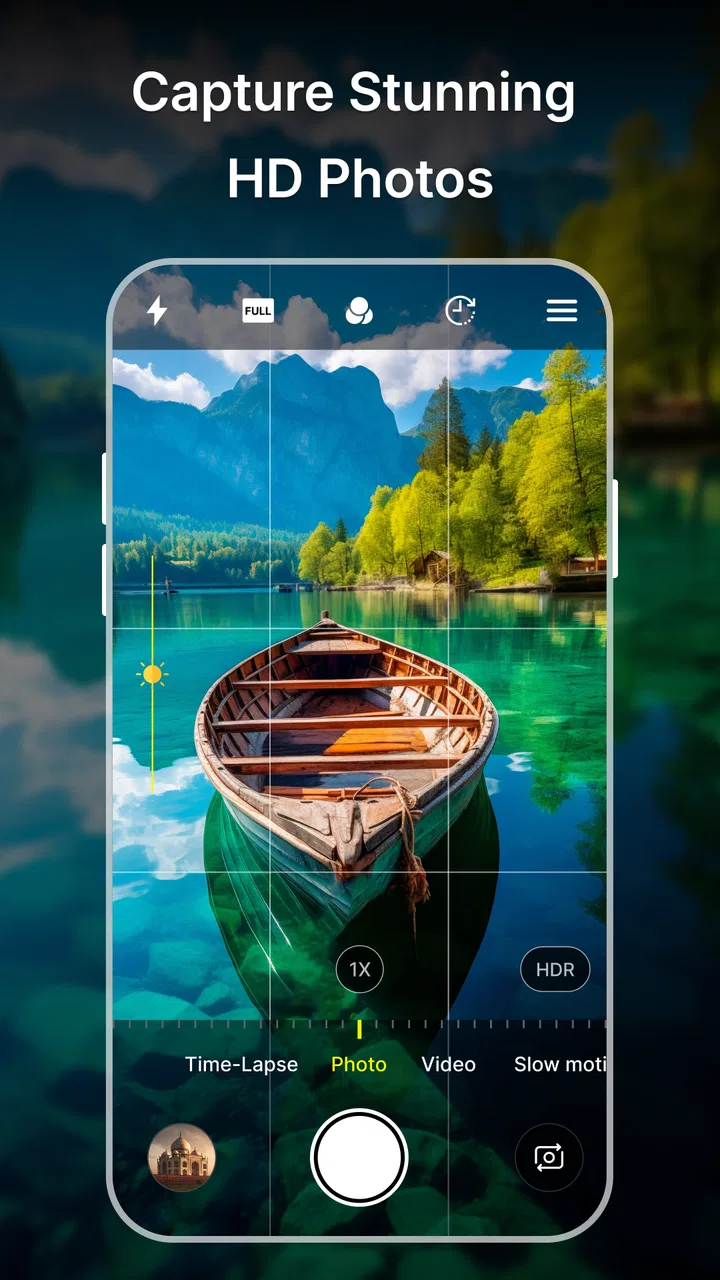
Text and controls are easiest to understand when the phone is held at a normal distance and the screen is clean. As with many camera interfaces, the preview occupies most of the display, while settings and capture controls compete for the remaining visual space. That arrangement is sensible for photography, but it can be demanding for users who need larger targets, stronger contrast, or more time to identify an icon.
I would not describe the navigation as intimidating, but it rewards a short familiarization period. Before an important event, I would open the app, test the photo and video modes, and check where filters and selfie options appear. That small preparation avoids having to search for a control while a child, pet, meal, or street scene is changing in front of you.
One useful habit is to separate setup from capture. I prefer choosing the intended mode and visual style before raising the phone to take the picture. This reduces the number of taps needed while framing and makes the process less stressful for people who find small on-screen controls difficult to hit accurately.
What the camera presentation communicates well
The app’s emphasis on HD and 4K capture gives it a clear appeal to users who care about detail or want footage that can be viewed on a larger screen. I would still treat those labels as an invitation to test the results on a particular phone rather than a guarantee of identical output across every Android device. The phone’s camera hardware, storage, lighting, and system behavior all remain important.
That distinction is especially relevant for readers who rely on visual clarity. A high-resolution setting may help when the subject contains fine detail, but it does not automatically solve glare, motion blur, poor lighting, or a difficult preview. In practice, steady framing and good light can make a bigger difference than selecting the most impressive-looking option.
The app is free, which lowers the cost of trying it as a second camera. It is also rated for Everyone, so its general presentation is suitable for a broad audience. I still recommend that families test the controls with younger users first, because an age rating describes content suitability, not whether the interface will be easy for every child to operate.
Motor, visual, and sensory considerations in real use
Camera controls create a particular accessibility challenge: the user often has to hold the phone steady while touching a small area of the screen. That is true whether the person has limited hand strength, tremor, reduced reach, or simply needs to operate the device one-handed. Camera HD for Android - 4K Cam can be useful in this context because a phone is already more familiar than a separate camera, but the app does not remove the physical demands of holding and aiming it.
For one-handed use, I would prepare the mode and filter before composing the shot. Then I would support the phone with the other hand, a stable surface, or a simple phone grip if available. This is not an app feature, but it changes the experience considerably. A user who taps around while simultaneously trying to keep a subject centered is more likely to lose the moment or produce a blurred image.
Users with limited fine motor control should also think about when they press the capture control. A deliberate pause after framing can be more effective than repeated corrections. For a still subject, I would place the phone against a stable object and use the app as a straightforward capture tool rather than trying to make every adjustment while holding it in midair.
Visual users may appreciate having a live preview instead of relying on a separate viewfinder, but the preview can still be difficult in direct sunlight or at a low brightness level. I found it sensible to angle the display away from reflections and enlarge the phone’s system text where possible. That may make surrounding labels easier to read, although it cannot guarantee that every in-app control will scale in the same way.
For people sensitive to visual clutter, filters deserve a little restraint. A filter can make a selfie or casual image more enjoyable, but switching styles repeatedly adds decisions at exactly the moment when the user may already be concentrating on framing. I prefer a simple workflow: take one neutral image first, then choose a visual effect only when it serves a clear purpose.
Audio and environmental sensitivity can affect video use even when the app itself is easy to operate. Recording in a busy place may produce distracting background sound, while bright scenes can make the preview harder to inspect. In those situations, the app remains usable as a capture tool, but the quality of the final result depends heavily on the surroundings rather than the camera interface alone.
A practical workflow for different abilities
For a user who has difficulty with repeated taps, I would configure the desired capture type before starting a short recording. This avoids changing modes during the most demanding part of the task. For someone with reduced vision, I would use a bright, uncluttered setting, keep the subject close enough to recognize, and review the image immediately rather than assuming the framing was correct.
For someone who finds camera operation tiring, the app works best in short sessions. Taking several carefully planned photos from a supported position is more realistic than carrying the phone at arm’s length for a long time. If the goal is a family portrait, I would arrange the scene first and make the camera the final step, not the device used to coordinate everything.
Selfies present a different trade-off. They are convenient when the user wants a quick personal image, but holding a phone away from the body can be uncomfortable or unstable. The selfie tools make this use case more approachable, yet the physical reach remains. A stable resting position and a preselected filter are more helpful than trying to adjust the appearance after the arm is already extended.
Situational access: where the app fits best
The most convincing use case for me is everyday photography when the default camera feels too limited but a professional camera app feels excessive. Imagine a weekend market: I might want a clean photo of a handmade object, a quick clip of a performance, and a selfie with friends. Having HD-oriented capture, video, filters, and selfie options in one photography app can reduce the need to switch between several tools.
It is also a reasonable option for someone who wants to experiment before spending money on a more advanced camera application. Because it is free, the barrier to testing is low. The app has reached over 500 thousand installs, which suggests that it has found a substantial audience, while its average rating of 4.2 from roughly a thousand ratings gives a generally positive but not flawless impression.
I would be more cautious in situations where the image cannot be retaken. For an important ceremony, a paid assignment, or a fast-moving event, I would use the camera app I already know best and keep this one as a secondary option until I had tested it thoroughly on the specific phone. Familiarity is an accessibility feature in its own right: knowing where every control is can matter more than having a longer list of modes.
Travel is another situation where the app’s strengths and limits become clear. A visitor may appreciate quick selfies and the ability to capture high-detail scenes, but travel often involves changing light, crowded spaces, and limited time. I would set up the app before reaching the viewpoint, because searching through controls while people move around me is both inconvenient and more physically demanding.
For older adults or relatives who are not comfortable with complex camera software, I would introduce only the basic workflow at first. Open the app, frame the subject, capture the image, and review it. Filters and higher-resolution video can come later. This staged approach makes the app less overwhelming and avoids turning optional features into obstacles.
For children, the Everyone rating makes the app broadly suitable from a content perspective, but supervision still makes sense when a child is using a phone camera. The practical concern is not mature material; it is accidental sharing, excessive recording, or confusion caused by switching settings. A parent can make the experience easier by preparing the camera and explaining one or two controls instead of handing over every option at once.
Where it compares well, and where another camera is better
Compared with a phone’s standard camera, Camera HD for Android - 4K Cam is appealing when the user specifically wants a camera app centered on HD or 4K capture, filters, and pro-style selfie use. The advantage is not simply having a shutter button; it is having those priorities presented together in one place. That can suit casual creators who want a slightly more expressive workflow.
The default camera remains the safer choice for speed and familiarity. It is usually the app people know how to operate without thinking, and that matters when a subject is unpredictable or when a user depends on muscle memory. If the built-in camera already provides the image quality and controls you need, changing apps may add friction without adding enough value.
A dedicated manual camera app is a better match for photographers who need exact control over exposure, focus, or other technical settings. Camera HD for Android - 4K Cam feels more appropriate for users who want an upgraded everyday experience rather than a complete replacement for a serious camera workflow. I would not choose it solely because the words HD or 4K sound professional.
Editing apps also serve a different purpose. They are better when the photo has already been taken and the main goal is cropping, correcting, retouching, or adding detailed adjustments. This app makes more sense at the capture stage, particularly for someone who wants to see a filter choice while taking a selfie or recording a clip.
That comparison reveals an important trade-off: convenience versus control. The app’s combination of capture and creative options is approachable, but users who want a carefully repeatable studio process may prefer a more specialized tool. In my view, its strongest position is between the basic camera and the fully manual camera, not at either extreme.
Remaining barriers before I would recommend it widely
The first barrier is device dependence. A camera app cannot create hardware capabilities that a phone does not have, and the practical result of a high-resolution setting will vary with the device. Before relying on it for important work, I would test a photo and a video in the lighting conditions I expect to encounter, then inspect them on the screen where they will actually be viewed.
The second barrier is physical stability. Users with tremor, limited grip, fatigue, or reduced coordination may find any handheld camera difficult, especially when using a large phone. A support surface or grip can help, but the app itself should not be treated as a complete solution for motor accessibility.
There is also a learning barrier around optional controls. Filters and selfie tools are inviting, but every additional choice can slow down a user who needs a simple, predictable path. I recommend establishing a default routine and changing one setting at a time. That makes it easier to identify whether a problem comes from the scene, the phone, or a selected effect.
Lighting creates another practical limitation. A bright outdoor scene can make the preview difficult to inspect, while a dim room can expose the limits of the phone’s sensor and the user’s ability to hold it still. No camera interface can make every environment equally readable. The best workaround is to move toward even light, avoid reflections, and review the result rather than trusting the first frame.
Finally, users who depend on very large controls, strong spoken guidance, or highly specialized accessibility behavior should test the app personally before making it their main camera. The general design is approachable, but suitability depends on the phone, the user’s system settings, and the exact demands of the situation. I would not recommend replacing a familiar accessible workflow without a trial period.
My inclusive verdict
Camera HD for Android - 4K Cam is a worthwhile free photography app for Android users who want more emphasis on high-definition capture, video, filters, and selfies than their regular camera provides. Antheia Tools has kept the central idea easy to understand, and the app’s broad Everyone rating makes it approachable for families and casual users. Its current version is 13.0 and it runs on Android 11 or later, so checking the phone’s system version is the sensible first step before installing.
I especially like it for planned everyday moments: a family photo from a supported surface, a short travel clip prepared in advance, or a selfie where the visual style is chosen before the phone is raised. Those workflows reduce the pressure on users who have limited dexterity, reduced vision, or difficulty navigating several controls at once.
I would skip it as a primary tool for critical photography if I had not already tested it on my phone. I would also choose the built-in camera for a rapidly changing scene and a specialized manual app for technical photography. Those are not failures; they define where this app fits best.
My overall recommendation is positive but practical: try it as a flexible second camera, learn its basic controls in a calm setting, and judge the results on your own device. The best reason to use it is the balance between creative options and everyday simplicity, while the main caution is that accessibility and image quality still depend on the phone, the environment, and the user’s preferred way of working.
For readers who want a low-cost way to explore HD or 4K-style capture without committing to a complex photography system, it is an easy app to test. For readers who need guaranteed large controls, specialized assistance, or completely predictable professional behavior, I would keep a familiar alternative available. Used with that honest expectation, Camera HD for Android - 4K Cam can make ordinary phone photography feel more deliberate without making every shot a technical project.
FAQs for Camera HD for Android - 4K Cam
01What features does Camera HD for Android - 4K Cam offer?
Camera HD for Android - 4K Cam provides users with high-resolution 4K video recording, advanced photo editing tools, and a variety of shooting modes such as panorama, night mode, and burst shots. It also includes manual controls for focus, exposure, and white balance, allowing users to capture professional-quality images with ease.
02Is Camera HD for Android - 4K Cam compatible with all Android devices?
While Camera HD for Android - 4K Cam is designed to work on most Android devices, compatibility can vary based on your phone’s hardware capabilities. Devices with higher processing power and better camera sensors will yield the best results. It is recommended to check the app’s requirements in the Google Play Store before downloading.
03Does Camera HD for Android - 4K Cam require a subscription or in-app purchases?
Camera HD for Android - 4K Cam is available for free download, but it offers in-app purchases for additional features and advanced tools. While the free version provides basic functionalities, users can enhance their experience by purchasing premium features, which include more filters, editing options, and cloud storage for photos and videos.
04How user-friendly is the interface of Camera HD for Android - 4K Cam?
Camera HD for Android - 4K Cam boasts a user-friendly interface, making it accessible to both beginners and experienced photographers. The app features intuitive navigation with easy-to-access settings and controls, allowing users to quickly switch between modes and customize their shooting experience without any hassle.
05What are the main advantages of using Camera HD for Android - 4K Cam over the default camera app?
The main advantages of using Camera HD for Android - 4K Cam over the default camera app include its advanced shooting modes, higher video resolution capability, and extensive manual controls. Additionally, the app offers enhanced editing tools and customizable settings that provide greater flexibility and creativity for users looking to elevate their photography.
Pros
- High-resolution 4K video capture.
- User-friendly interface design.
- Advanced editing tools available.
- Supports multiple shooting modes.
- Fast and responsive shutter speed.
Cons
- Consumes significant battery power.
- Ads can be intrusive at times.
- Limited free features without upgrade.
- Requires high storage space for 4K.
- Occasional lag on older devices.

Camera HD for Android - 4K Cam
Gallery